Files on a card
Add screenshots, PDFs and other files to a card, preview them, and remove them.
3 min read · Updated Nov 10, 2026
On this page
Every card has a Files section under its description. Anyone on the project can add files there, and anyone who can see the project can open them.
Add a file
Open the card
Click a card on the board, for example
DG-ROUTE-0042.Add the file
Drop files on Files, or click Add files and pick them. On a phone, Add files also lets you take a photo.
Or paste a screenshot
Copy a screenshot and press Cmd+V (or Ctrl+V) anywhere on the card page. It's saved as
screenshotplus the date and time, for examplescreenshot 2026-11-10 14.05.12.png.
If you paste a screenshot while you're writing a comment, it still goes to Files, and the comment gets "see" plus the file's name, so people know which file you mean.
Each file shows up as a tile with a small picture (or an icon for PDFs and sheets), its size, who added it and when. The card's history says who added it. On the board, the card shows how many files it has, for example 2 files.
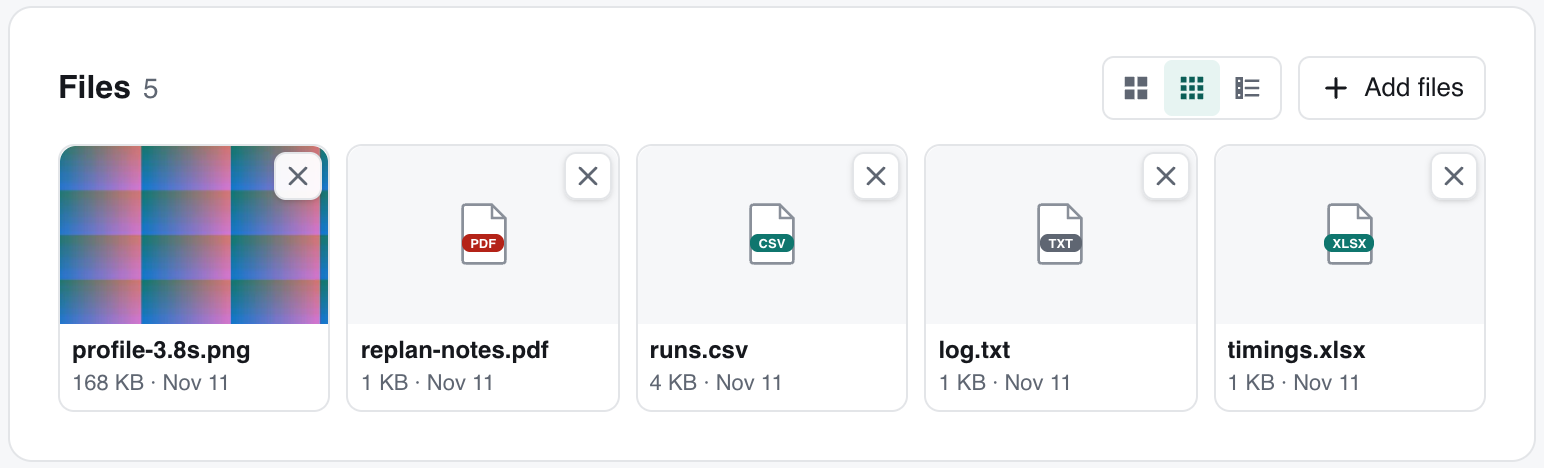
Boardway keeps pictures (PNG, JPEG, WebP, GIF), PDF, text, CSV, JSON and Excel files. A file can be up to 5 MB, a card can keep 20 files, and a company can keep 1 GB of files in total.
Change how files look
Use the three buttons next to Add files:
- Large tiles: three in a row, with who added each file.
- Small tiles: five in a row (three on a phone). This is where everyone starts.
- List: one line per file with a small picture, its size, who added it and the day.
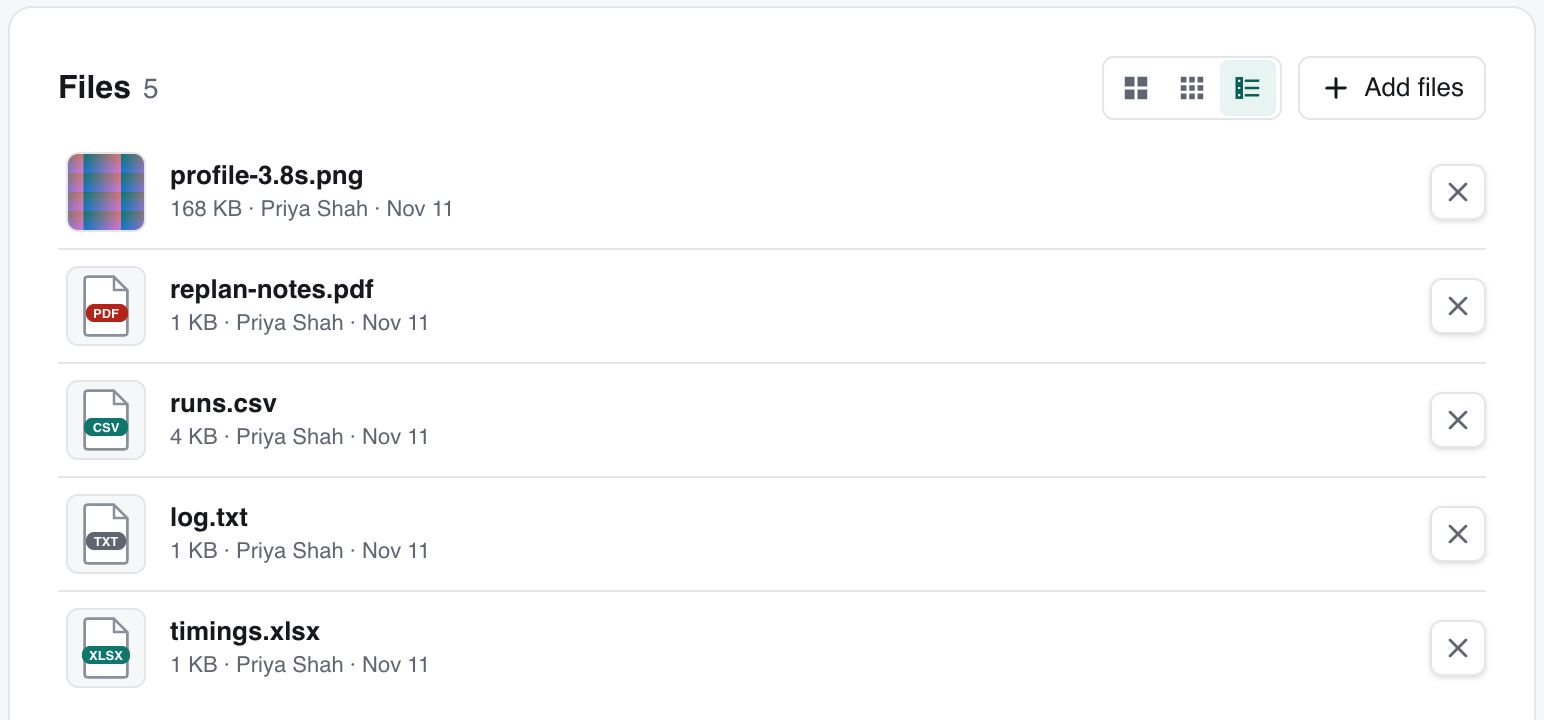
Your choice is kept in this browser and used on every card. It only changes what you see: other people keep their own choice.
Preview a file
Click a tile to open it over the page:
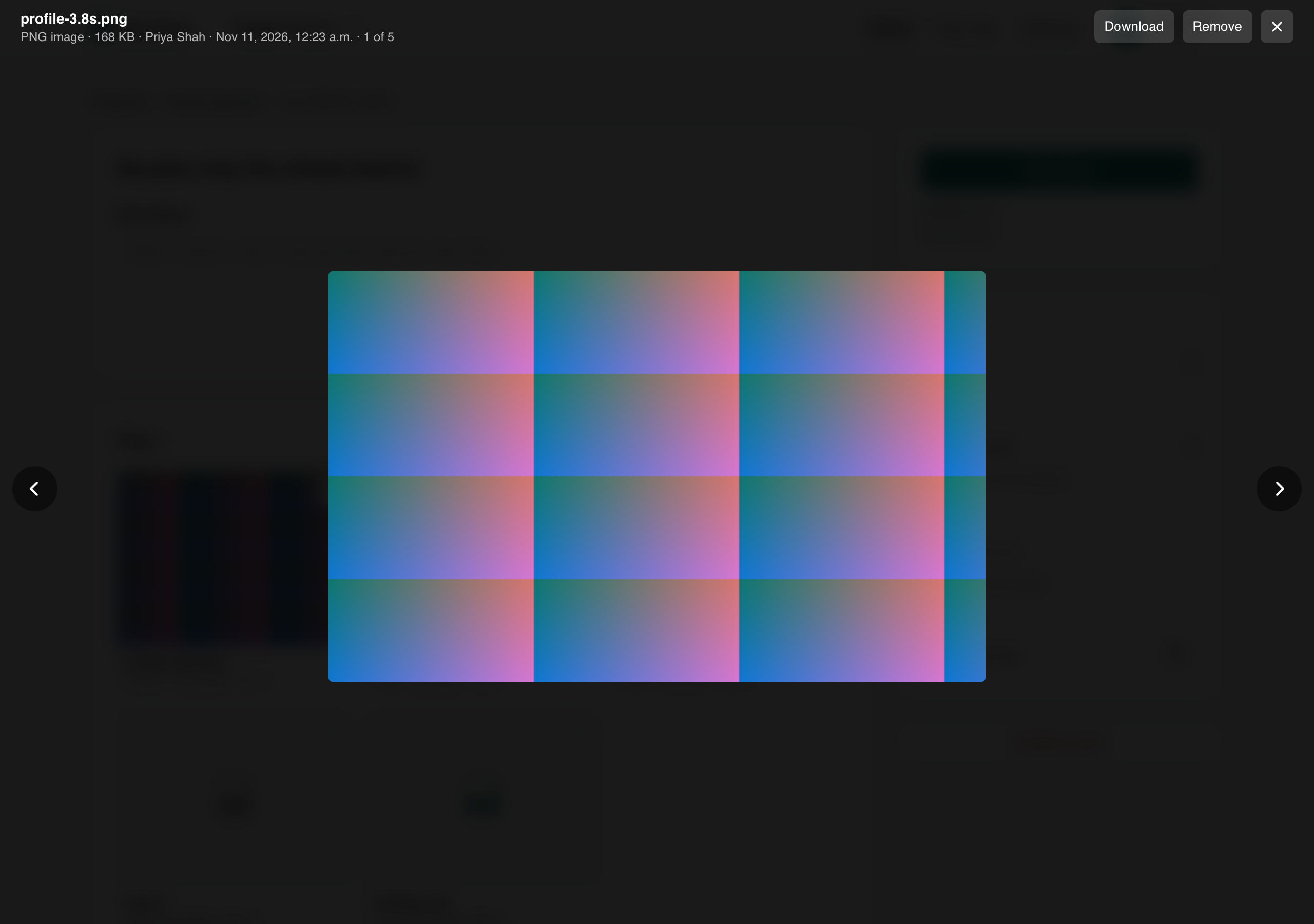
- Pictures show full size. Use the arrows (or swipe on a phone) to go to the next file.
- PDFs open in your browser's own PDF viewer, so you can page through and zoom.
- Text, CSV and JSON show their first 200 lines. CSV files show as a table.
- Excel sheets have no preview. Click Download.
Every file has Download at the top. Press Esc or click outside the file to close it.
Remove a file
Click the x on a tile, or Remove in the preview. The person who added the file, the project's Lead and Admins can remove it. It's deleted for everyone, and the card's history keeps its name and who added it.
Who can see files
Files follow the card. People on the project, and Admins, can open them. Someone who isn't on the project can't open a file, even with its link. Archived cards keep their files.
Files stay in Boardway. They're never sent to Sredify or to the AI model behind SR&ED fit.