Create your company
Sign in to Boardway and set up your company's name, key and time zone.
2 min read · Updated Nov 6, 2026
On this page
The first person from your company to sign in creates the company. You become its first Admin.
Joining a company that already exists?
Don't create a new one. Ask its Admin to invite your email address, then open the invite link. See Invite people.
Sign in
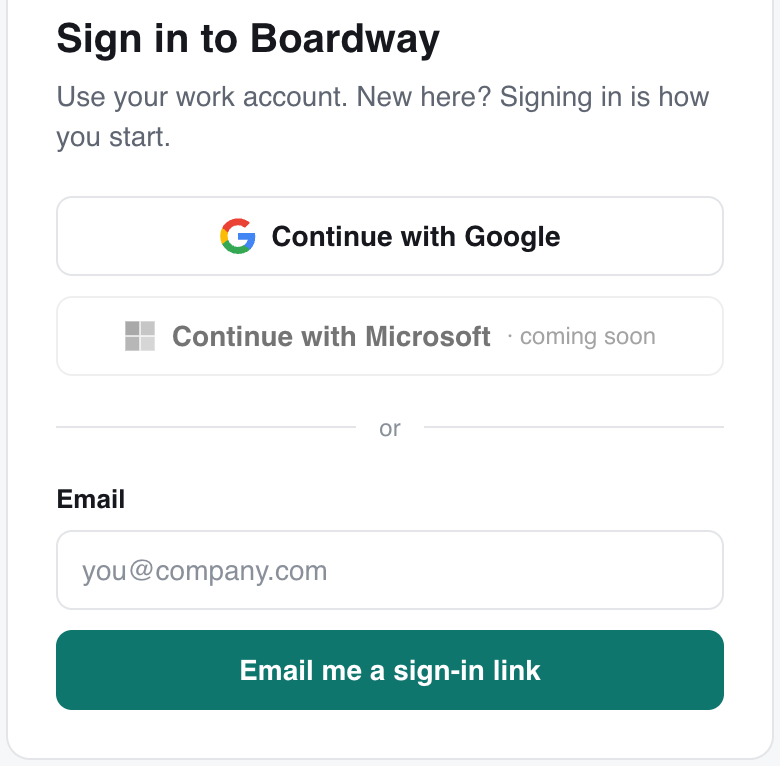
Go to the sign-in page. You have two ways in:
- Continue with Google: sign in with your Google account.
- Email me a sign-in link: type your email and Boardway sends you a link. The link works once, for 15 minutes.
You'll also see Continue with Microsoft marked coming soon. It is greyed out and can't be used yet.
Set up the company
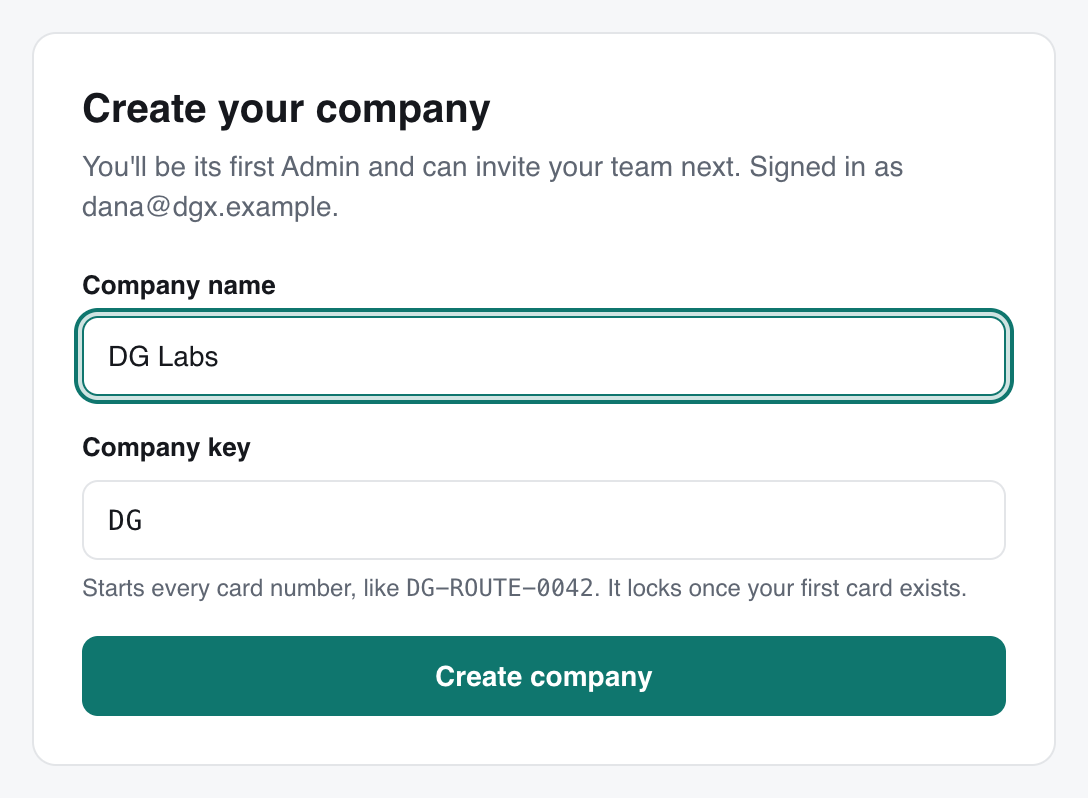
After you sign in for the first time, Boardway opens the Create your company page. If someone has already invited you, their invite shows at the top with an Open invite button.
Type the company name
For example
DG. This is the name your team sees.Check the company key
Boardway suggests a key from the name. You can change it: 2 to 10 capital letters or digits, starting with a letter. Our example uses
DG.Click Create company
You land on the Board, ready to make your first project.
The company key
The company key starts every card number. With the key DG and a project ROUTE, cards are numbered DG-ROUTE-0001, DG-ROUTE-0002 and so on.
The key locks
You can change the key in Settings, Company until the first card exists. After that it's locked, because card numbers end up in branch names, commits and links.
Time zone
Boardway takes the time zone from your browser when you create the company. It decides where a day starts and ends in Your day. An Admin can change it later in Settings, Company, along with the company name and the day the week starts on.
One company per person
Each person belongs to one company on Boardway. If you need to be in a second company, use a different email address for it.