Projects and cards
Make a project, add cards, and move them across the board.
3 min read · Updated Nov 16, 2026
On this page
Click Board in the header to see Projects: the projects you're on and the ones you can join.
Make a project
Admins and Members can make projects. Guests can't.
Click New project
It's at the top of the Projects page.
Name it and check the key
Type a Project name, like
Route engine. Boardway suggests a Project key. Change it if you like, for exampleROUTE: 2 to 6 capital letters or digits, starting with a letter.Choose SR&ED project if it applies
Tick SR&ED project if the work may count for SR&ED. Its cards get an SR&ED / Not SR&ED / Not sure switch. You can change this later.
Click Make project
You become the project's Lead.
The project key is part of every card number: company DG plus project ROUTE gives DG-ROUTE-0001, DG-ROUTE-0002, and so on. Numbers are never reused. The key locks once the first card exists.
Long card numbers are shortened on the board so the number at the end always shows. A card cuts letters off the front first, like …LOPM-INFRASTRUC-0041. If that isn't enough, every card on the board drops the company part (…INFRASTRUC-0041), then shows only the number (…0041). Point at the number to see it in full; the card page always shows it in full.
Project tabs
Each project has these tabs:
- Board: the cards.
- People: who's on the project, the Lead, and requests to join.
- Hours: time on this project's cards. Only Admins see it, and the Lead when the company allows it.
- Settings: name, key, SR&ED, and Archive project. Only the Lead or an Admin can change them.
Archived projects
An archived project is read-only and leaves Projects. Its cards, hours and history are kept. Admins find archived projects through the Archived projects link at the bottom of Projects. The newest archived is at the top, and Restore puts a project back on Projects.
Add a card
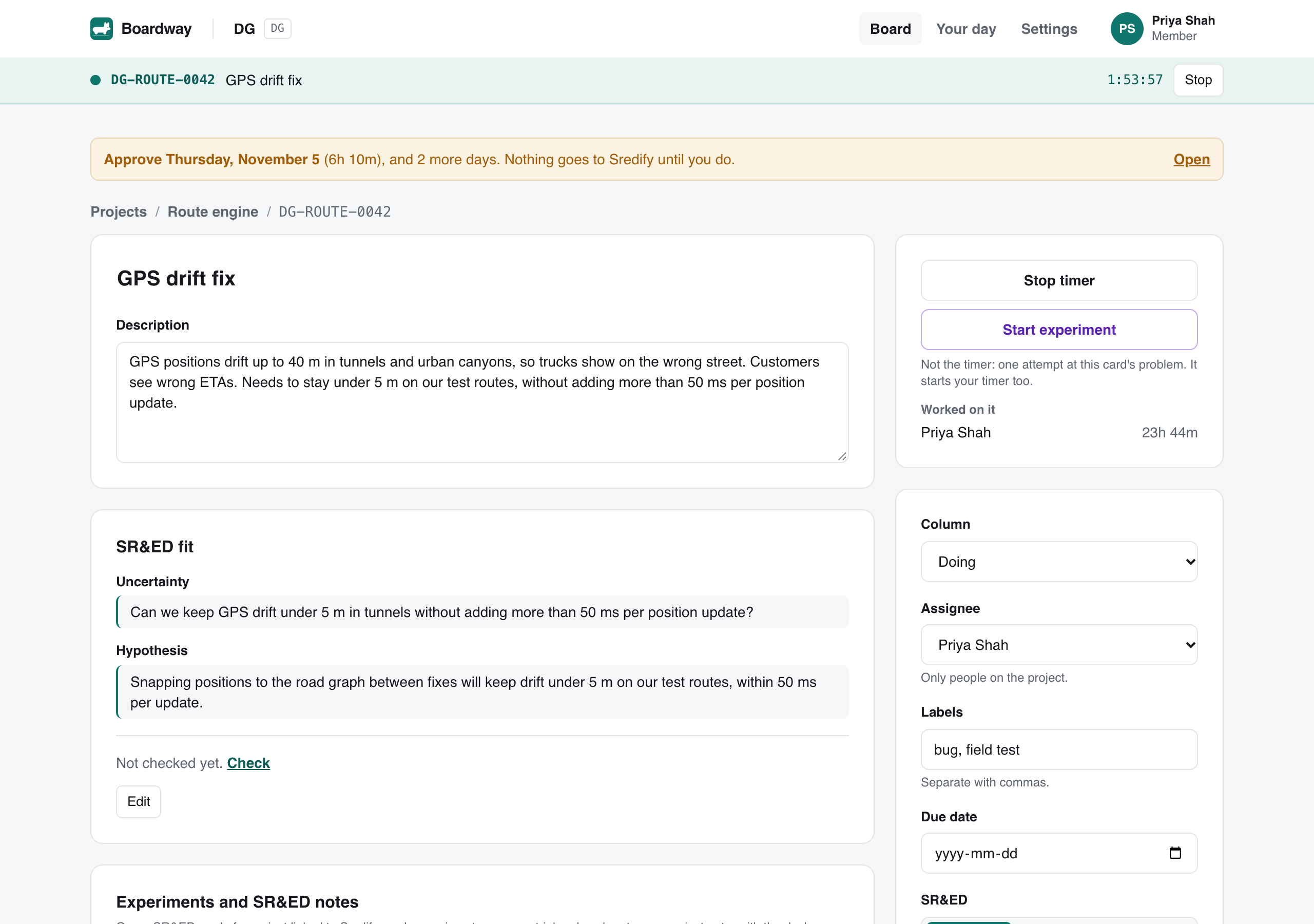
Under To do, click + Add a card, type a title like GPS drift fix, and click Add card. Click a card to open its page, for example /c/DG-ROUTE-0042.
On the card page you can set the Assignee (only people on the project), Labels (separate with commas), a Due date, a Description, and post Comments.
Move a card
The columns are To do, Doing, Stuck and Done.
- Mouse: drag the card to another column or place.
- Touch: press and hold the card, then drag. On a phone you can also use the Move to menu on the card.
- Keyboard: focus the card, press Space to pick it up, use the arrow keys, then Space to drop it. Escape cancels. Enter opens the card.
You can also change the Column on the card page.
If you're on the project, moving your card into Doing starts your timer on it. If nobody has the card yet, it becomes yours. Moving a card out of Doing stops the timer on it.
The Stuck and Done question
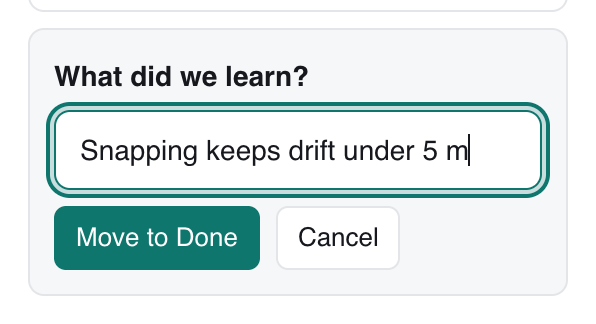
Moving a card into Stuck asks What's not working? Moving it into Done asks What did we learn? One line is enough. The answer is saved on the card with the date and your name.
When you can skip it
Stuck always needs an answer. Done can be skipped with Skip on cards that aren't SR&ED: any card on a project that isn't an SR&ED project, or a card switched to Not SR&ED.
Find cards
On the board, narrow the cards with Mine, the assignee menu, the label menu and (on SR&ED projects) the SR&ED menu. Click Show all to clear them.
To find any card, use the search box on Projects, or go to Search. Type a full key like DG-ROUTE-0042, a short one like ROUTE-42, a project key, or words from a title. Tick Archived too to include archived cards.