Docs › Extensions › VS Code
Connect VS Code
Link the extension to your Boardway account once. After that your timer shows in the status bar.
1 min read · Updated Nov 6, 2026 · Extension 0.1.3
On this page
Before you start
Install the extension first, and be signed in to Boardway in your browser.
Click Boardway: Connect
It's at the bottom left of the editor. You can also run Boardway: Connect from the Command Palette.

Check the code
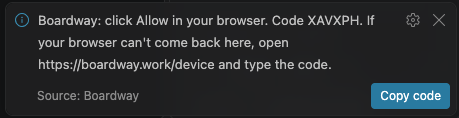
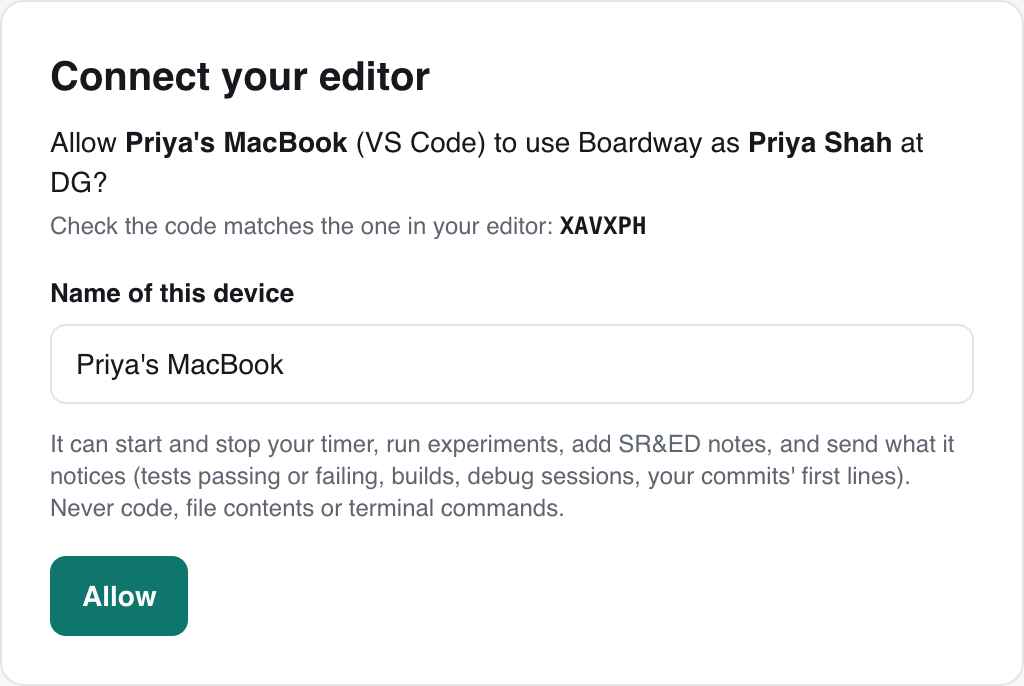
Your browser opens Boardway. The 6-letter code it shows must match the one in your editor's message.
Name the device and click Allow
Pick a name you'll recognise later in Settings, Devices, then click Allow. The editor connects by itself a moment later and says who you're connected as.
Working over SSH or in a container
If the browser can't come back to the editor (remote SSH, a dev container, a cloud workspace), open boardway.work/device in any browser where you're signed in and type the 6-letter code from the editor's message instead. The code works for 10 minutes.
Signed in as someone else?
The device connects to whoever is signed in to Boardway in that browser. Check the name on the Allow page before you click.
What happens next
With no timer running, the status bar suggests the card for the branch you're on. See The status bar.