Your day
Check your day's time, fill gaps, add time the timer missed and fix blocks before you approve.
3 min read · Updated Nov 6, 2026
On this page
Your day (in the header, or /day) shows one day of your time, in the company's time zone. Use the arrows to go to the day before or after.
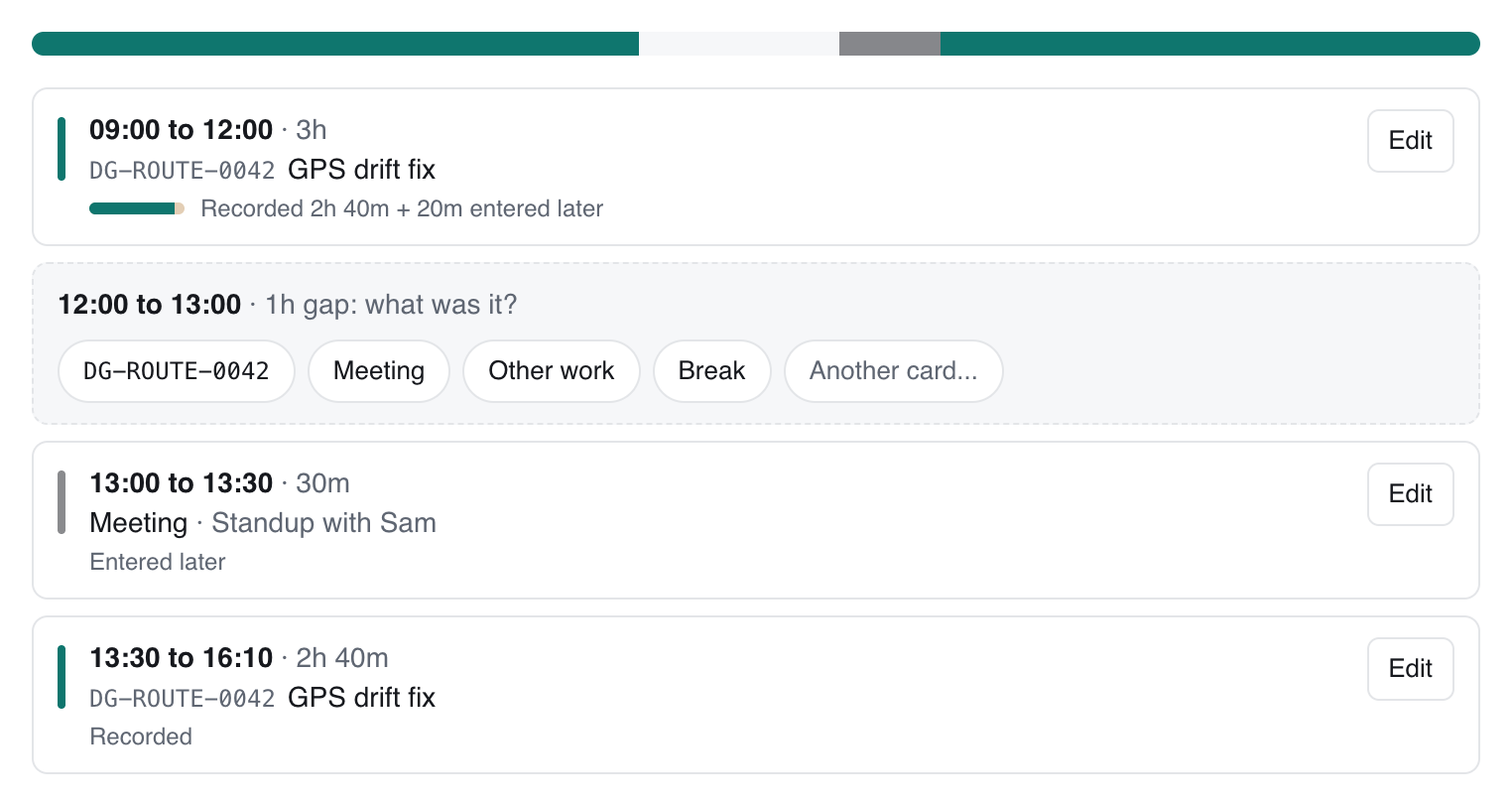
Blocks
Each block shows its times, how long it is, and what it was: a card, Meeting, Other work or Break. Under it, a line says where the time came from.
Recorded or entered later
Every minute is one of two kinds:
| Label | What it means |
|---|---|
| Recorded | The timer saw it. |
| Entered later | Someone typed it in: added time, a sorted gap, a stretched block, or away time you kept. |
| Recorded 2h 40m + 20m entered later | One block with both parts. |
Entered later is normal and honest: it only says where the time came from. The label matters for SR&ED because a review can ask how the hours were captured, so Boardway keeps the two apart. You can't turn it off.
Gaps
A gap is time between your first and last block with nothing in it. Each one asks "what was it?" with one tap answers: your Doing or recent cards, Meeting, Other work, Break, or Another card.... A gap you leave unsorted counts as not work.
Add time
Press Add time for work the timer never saw, like a phone call or a whiteboard session. Pick From, To, What and an optional Note, then Add. It's labelled entered later. A call about an SR&ED card goes on that card, so it counts as SR&ED. You can't add time in the future.
Edit a block
Press Edit on a block to change its times, card or note, then Save. Stop the timer first: a running block can't be edited.
- Stretching a block splits it. If the timer ran 9:00 to 11:40 and you stretch it to 12:00, 9:00 to 11:40 stays recorded and only 11:40 to 12:00 is entered later. It's still one block.
- Shortening a block keeps it recorded.
- Remove stops a block counting. It's kept in the history.
Overlaps
Two of your blocks that cover the same time get a red overlaps tag. Edit one so they don't.
Totals and R&D %
The side panel shows Worked, SR&ED, To decide (time on Not sure or unpicked cards), Breaks, and recorded against entered later. R&D % is SR&ED time out of all worked time for This week and the Last 30 days, on approved days only. Only cards switched to SR&ED count.
Daily maximum
Over the daily maximum (10 hours unless an Admin changed it) you see "Over the 10h daily maximum: only 10h can go to Sredify." It's a warning: you can still approve. Once Sredify is connected, Sredify's number is used.
After you approve
You can still change an approved day, with a one line reason, for the edit window (7 days unless an Admin changed it). Every change is listed under Changes. Then the day locks. See Approve your hours.